What's inside
Form content
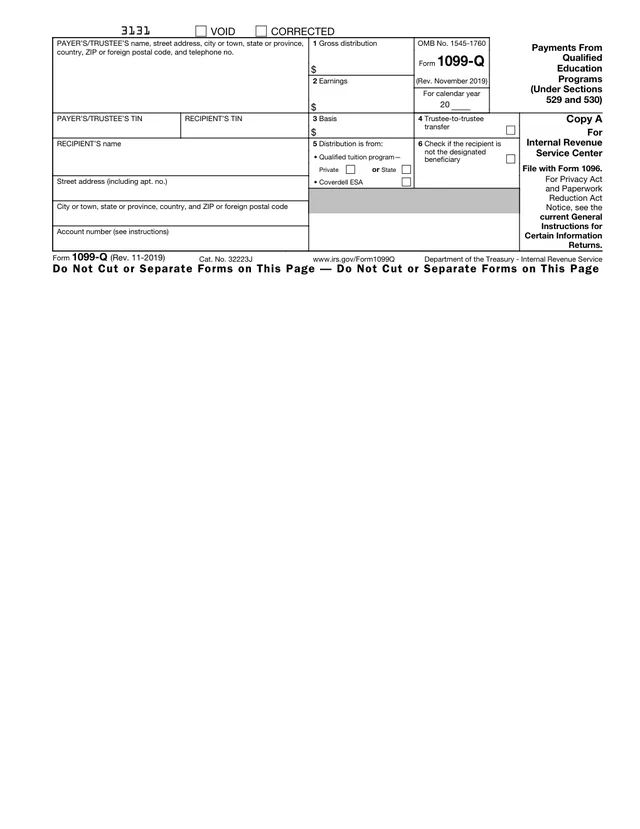
(Rev. November 2019)
For calendar year
20
Cat. No. 32223J
Payments From
Qualified
Education
Programs
(Under Sections
529 and 530)
Copy A
For
Internal Revenue
Service Center
File with Form 1096.
For Privacy Act and Paperwork
Reduction Act
Notice, see the current General
Instructions for
Certain Information
Returns.
3131
VOID
CORRECTED
PAYER’S/TRUSTEE’S name, street address, city or town, state or province, country, ZIP or foreign postal code, and telephone no.
PAYER’S/TRUSTEE’S TIN
RECIPIENT’S TIN
RECIPIENT’S name
Street address (including apt. no.)
City or town, state or province, country, and ZIP or foreign postal code
Account number (see instructions)
1 Gross distribution
$
2 Earnings
$
3 Basis
$
4 Trustee-to-trustee transfer
5 Distribution is from:
• Qualified tuition program—
Private or State
• Coverdell ESA
6 Check if the recipient is not the designated beneficiary
Form 1099-Q (Rev. 11-2019) www.irs.gov/Form1099Q
Do Not Cut or Separate Forms on This Page — Do Not Cut or Separate Forms on This Page
(Rev. November 2019)
For calendar year
20
Payments From
Qualified
Education
Programs
(Under Sections
529 and 530)
Copy B
For Recipient
This is important tax information and is being
How to fill it
Fill or edit this form in MePDF
- Preview page 1 to confirm the form name and revision.
- Select Fill form to answer the form one page at a time.
- Type an answer for each field; checkboxes and choices use the form’s own options.
- Preview the finished pages, then download the flattened PDF.
- The downloaded copy is image-only, so it cannot be edited as a form again.
Fill only the fields that apply and keep a copy of the finished PDF. The editor keeps the original layout while you fill the existing fields.